
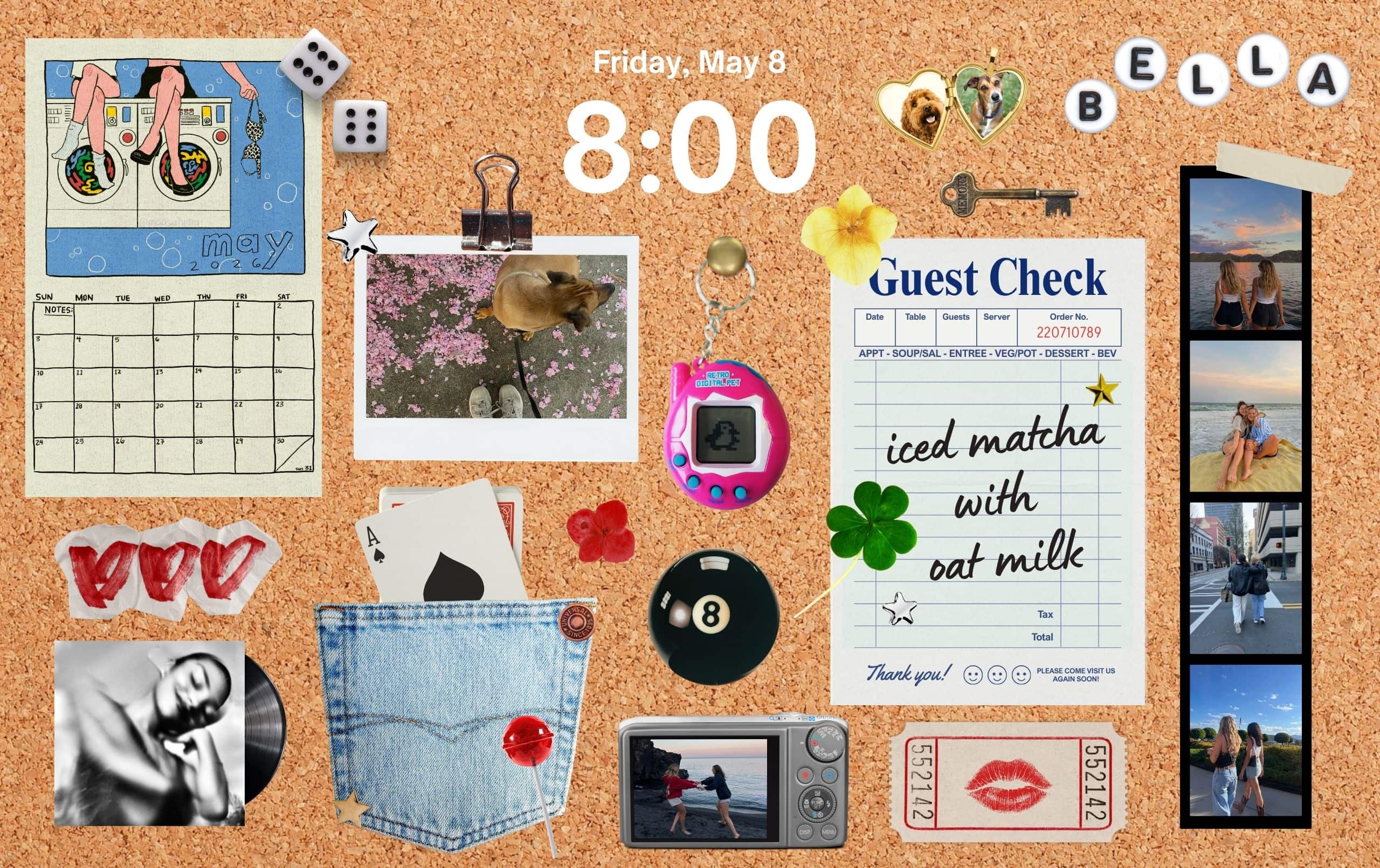
It started as one of those “I just want my desktop to feel cuter” projects… and somehow turned into a full little digital corkboard universe.
I’ve been obsessed lately with messy scrapbook layouts, vintage stickers, tiny random objects, old photo booth strips, and wallpapers that actually feel personal instead of overly minimal. So I made a fully customizable corkboard wallpaper template you can decorate however you want inside Canva.
Think: late 2000s bedroom wall energy, digital diary vibes, and the kind of desktop that makes opening your laptop feel a little more fun.
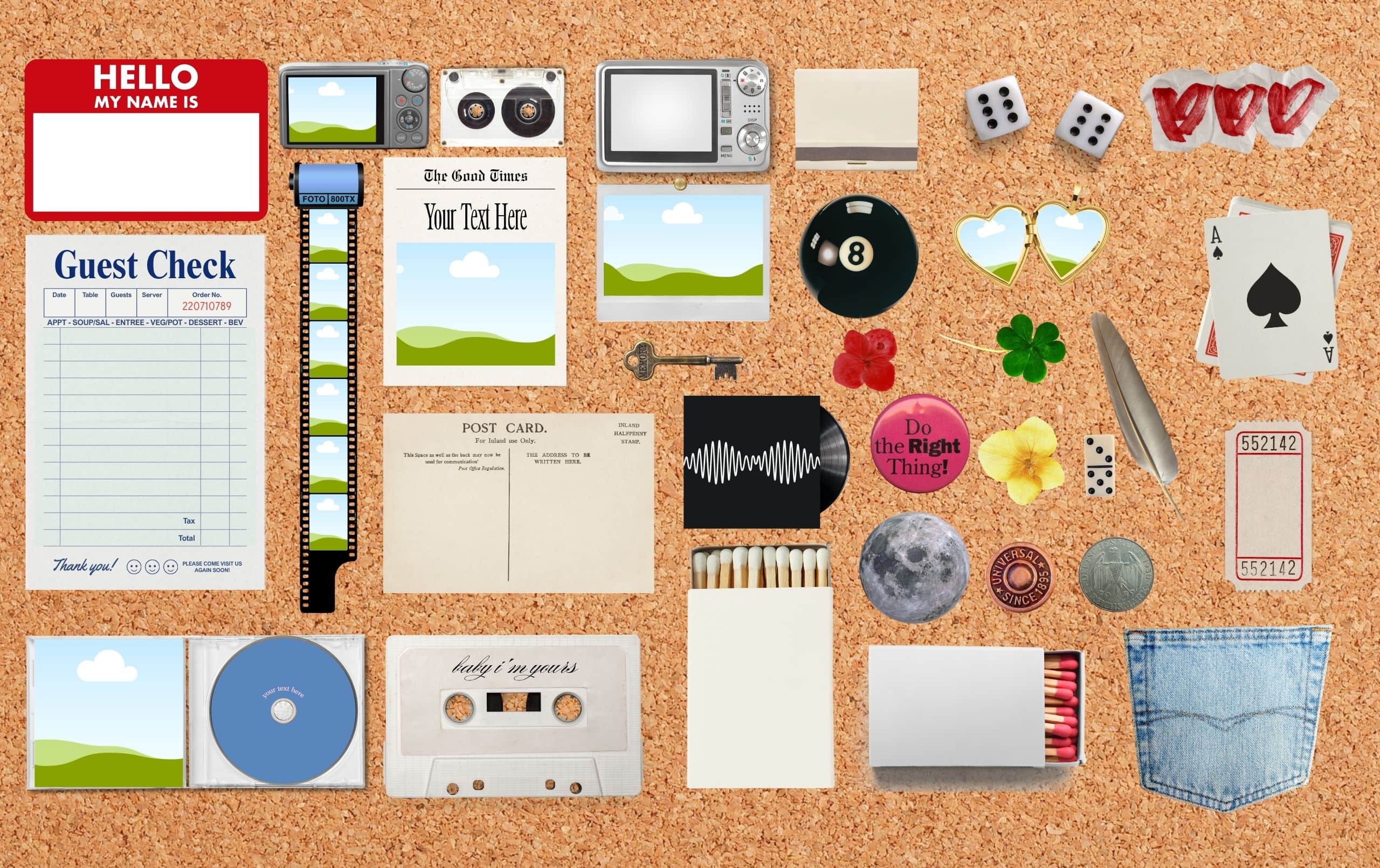
This week’s Freebie Friday includes editable corkboard wallpaper templates, a full bead alphabet set, and a bunch of mini graphics you can drag around to create your own layout. You can keep it aesthetic and neutral, make it chaotic and nostalgic, or turn it into a vision board for summer. Honestly, there’s no wrong way to use it.
What You’ll Get
When you sign up below, you’ll receive access to:
- 1 fully editable corkboard style wallpaper templates for Canva
- 1 bead alphabet graphic sheet (A–Z included)
- A curated set of scrapbook-inspired graphics and mini elements
- Pre sized Mac desktop wallpaper templates at 2560 × 1610 px
- Fully customizable layouts you can personalize with your own photos, notes, stickers, and aesthetic details
This freebie is designed to feel like a digital corkboard you’d build in your room — layered, nostalgic, a little chaotic in the best way, and completely customizable.
Recommended iPad Sizes
You can easily resize the templates inside Canva for iPad use. Here are a few recommended dimensions:
- iPad Pro 12.9” → 2048 × 2732 px
- iPad Air / iPad Pro 11” → 1668 × 2388 px
- Standard iPad → 1640 × 2360 px
Don’t worry if your exact device isn’t listed. Canva makes resizing super simple.
How to Resize the Wallpaper in Canva
Once you open the template:
- Click Resize at the top of Canva
- Enter your desired dimensions
- Select Copy & Resize
- Adjust any graphics or spacing if needed
- Download your new wallpaper size
A Quick Note About Canva Pro
This template includes a few Canva Pro elements, including some fonts and graphics.
If you’re using a free Canva account, you may see certain elements watermarked or locked. You have two simple options:
- Swap those elements for free alternatives inside Canva
- Or start Canva’s free Canva Pro trial to unlock everything as designed
Either way, the templates are fully editable and easy to customize.

How to Get Yours
To download the templates, just drop your email below.
You’ll instantly get access to the Canva file and you’ll also be signed up for our newsletter, where I share cozy inspiration, digital freebies, creative ideas, and seasonal favorites a few times a month.
If the email doesn’t show up right away, make sure to check your spam or promotions folder just in case.
How to Download Your Wallpaper
Once you open the Canva link:
- Click Use Template
- Customize your wallpaper however you’d like
- Click Share → Download
- Choose PNG for the best wallpaper quality
- Save it to your device and set it as your background
For best results:
- Download at the highest quality available
- Keep the original proportions when resizing
- Use high resolution photos if you add your own images
Note: These templates are for personal use only. Please don’t sell, share, or redistribute them. They’re copyrighted by me.
I seriously had so much fun making this one. It feels like a tiny digital scrapbook desk setup and I can’t wait to see how you customize it ✶

didn’t get itt
Hi Nora, did you check your spam and promotion folders?